
Create your account
1
Sign up
Go to app.mirage.partners and sign up with your email address or Google account.
2
Land on the welcome screen
New accounts without an organization are guided to create one. If you were invited to an existing organization by email, follow the link in your invitation instead; you’ll join that organization directly. See Team & field reporters.If your email domain matches an organization already on Mirage, the welcome screen offers to request an invite from them instead, a quick way to avoid setting up a duplicate organization for the same nonprofit.
Create the organization
From the welcome screen (or New organization in the dashboard), fill in your organization profile:- Name: how your organization appears everywhere in Mirage, including donor-facing pages.
- Description: a short summary of your mission.
- Website, location, and contact details: email and phone for your organization.
- Logo and cover image: optional, but they make your dashboard and donor-facing pages feel like yours.
Finding your way around
Once your organization exists, its dashboard is home base: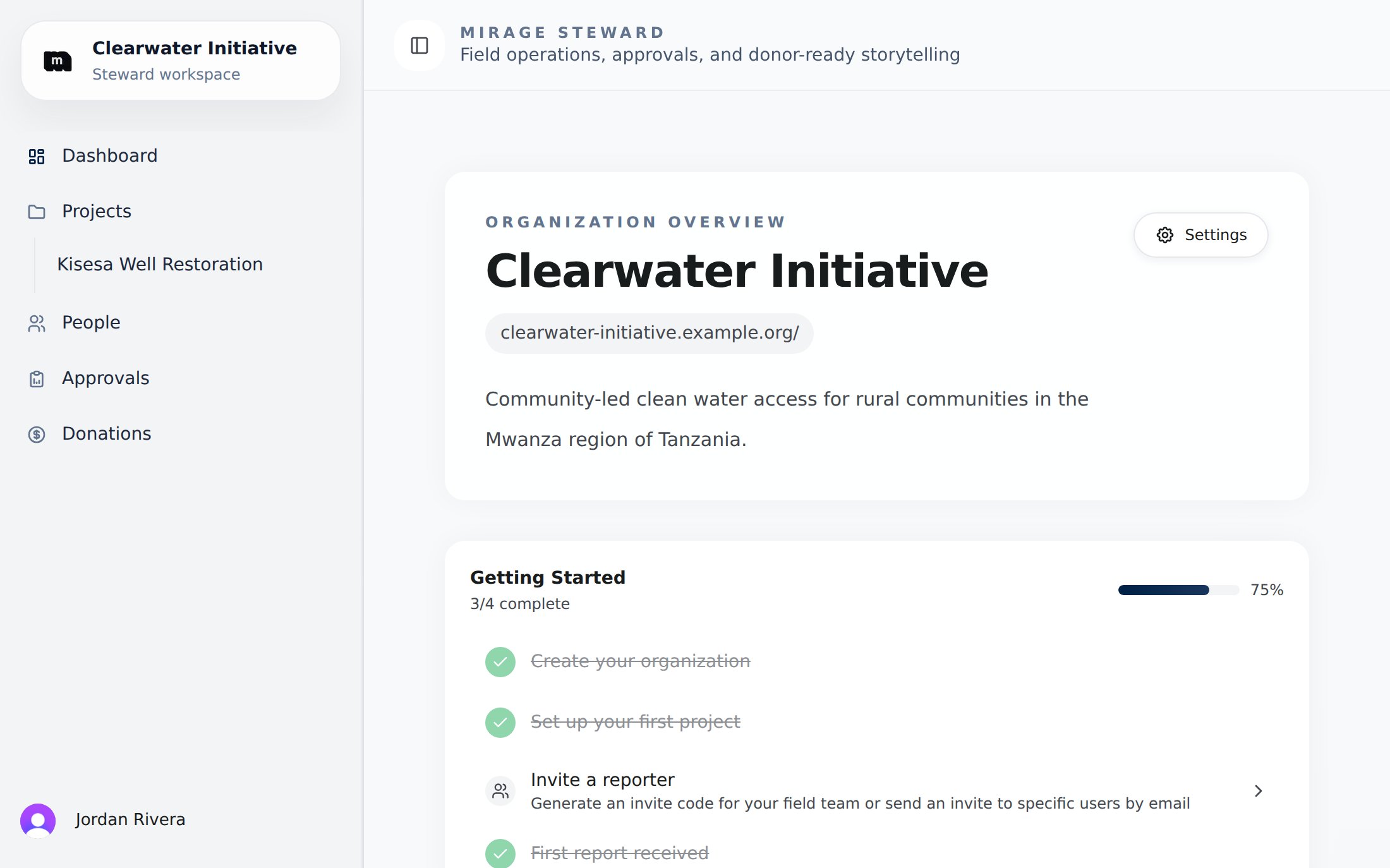
The organization overview: getting-started checklist, headline stats, and your projects.
Organization-level Settings (profile and verification) and Plans & billing live behind a Settings button in the Dashboard header rather than the main sidebar.
Each sidebar item shows a small badge when something needs your attention: a dot for items you must act on, a number for unread updates. On the page itself, updates appear as dismissible cards near the top: a new team member joining, a verification result, or a report ready for review.
Multiple organizations
One account can belong to several organizations (useful for consultants, network organizations, or fiscal sponsors). Use the organization switcher in the sidebar to move between them; each organization’s projects, people, and billing are fully separate.Getting-started checklist for a brand-new organization: create a project, invite reporters, and submit your verification documents. The Quickstart covers the first two; Verification covers the third.